How to Manage Your Photos - Part 2
· 2 min read
Here are the settings I use for the official Flickr plug-in in Lightroom 4.1. Extraordinary care needs to be taken at this step. If not set up correctly, all the existing Flickr photos might need to be re-published and that might take a long long time.
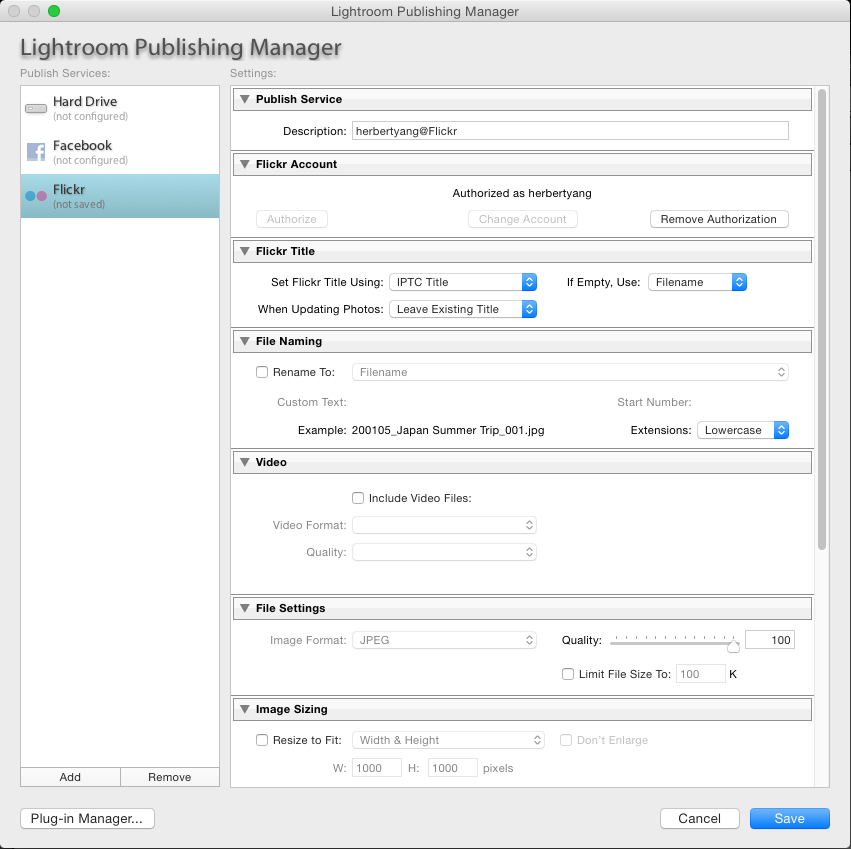
Flickr Title
- Set Flickr Title Using: IPTC Title
- If Empty, Use; Filename
- When Updating Photos: Leave Existing Titles
- note: Title should be set differently from filename. Filename is used to index photos in an album and give a unique identifier/handle to a photo. Title is used to give a more descriptive caption to a photo. Filename needs to be unique, while title can be anything. Caption is another item that often confuses and complicates this love triangle of filename-title-caption. I'll just leave caption blank.
Filename
- uncheck everything
- note: Renaming can be done in this Lightroom-to-Flickr as well, but I'd suggest doing file renaming within Lightroom, where you can have almost 100% control of what happens.
Video
- uncheck everything
- note: I keep videos separate from photos. All my videos get uploaded to youtube.
File Settings
- Set Quality to: 100
- note: The default is 60%. So make sure you change it to 100% to preserve the raw quality.
Image Sizing
- uncheck everything
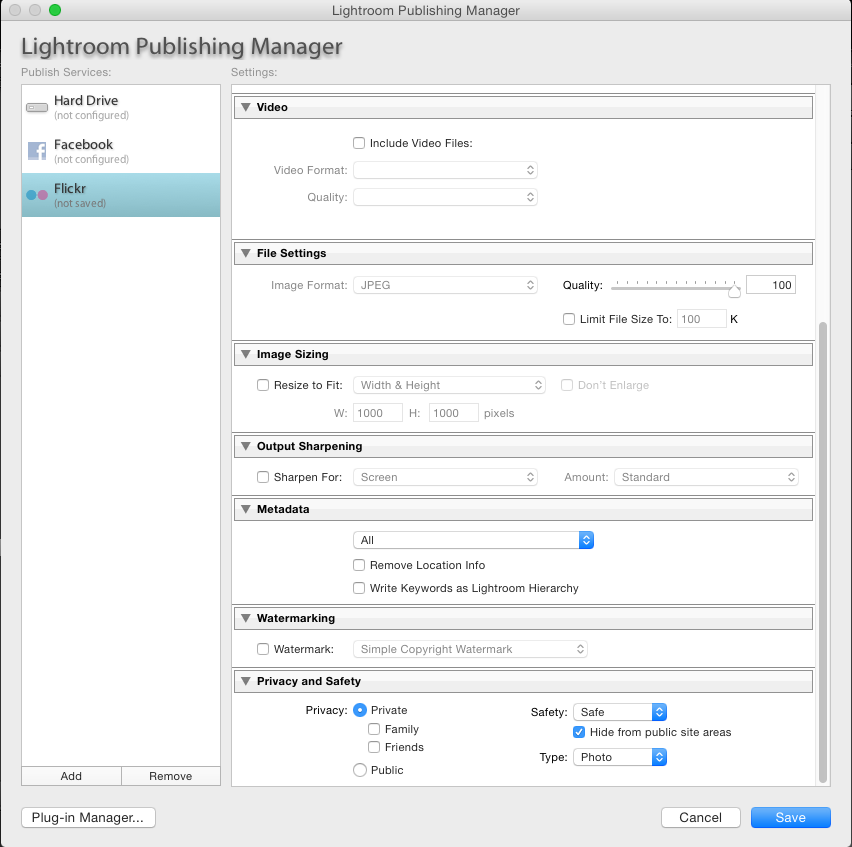
Output Sharpening
- uncheck everything
Metadata
- Choose: All
- uncheck everything else
Watermarking
- uncheck all
- note: If you're a professional stock photographer, you might need to adjust this setting to stamp a watermark on your photos. It's not necessary for photos about families and friends.
Privacy and Safety
- Privacy: Private
- Safety: Safe, check "Hide from public site areas"
- Type: Photo
- note: It's critical to get this one right. You don't want to upload photos as public albums by default.