Set Up Home Network in EV
Setting up my home network is not as easy as it first looks. It took me quite a while to figure this out. I'm using all Macs - iMac, iPad, and iPhone.
Confession of a Stanford Sloan Fellow Series EP10
Setting up my home network is not as easy as it first looks. It took me quite a while to figure this out. I'm using all Macs - iMac, iPad, and iPhone. Here's how to set up the eventual air-play and home-sharing (both features are only available to Mac users) on Apple TV, which projects everything on TV.
1. Register your every networking device at Stanford Residential Computing's page: http://rescomp.stanford.edu, including your router, iMac, iPad, iPhone, PS3, and Apple TV. All you need for the registration is the MAC (Media Access Control) address for your device, which is also called wi-fi address. It follows this format: XX:XX:XX:XX:XX:XX. There is one unique MAC address for each device and it can always be found either on the device itself or in its settings (it's like a VIN number for your car's engine). When you register for devices such as iMac, iPad, iPhone, you can work through the registration process on that device itself, because they provide a user interface/browser for you to do that. When you register for PS3, router or Apple TV, you have to do that on ANOTHER device (like iMac/Macbook) because PS3/router/Apple TV do not have an interface themselves. One of the questions during that rescomp registration process goes something like " are you registering for the current device you're using?" . Check "No" when you're doing this for router/Apple TV.
2. Get a router. Can you still get online without a router? Yes of course. You can always just connect your device to "Stanford Residence", but it's advisable to get a router for your apartment home because you can only get airply and home-sharing to work if you have a router. Router is almost a commodity and is cheap. You can get a decent one under $100 from Fry's. Register your router as well at rescomp page.
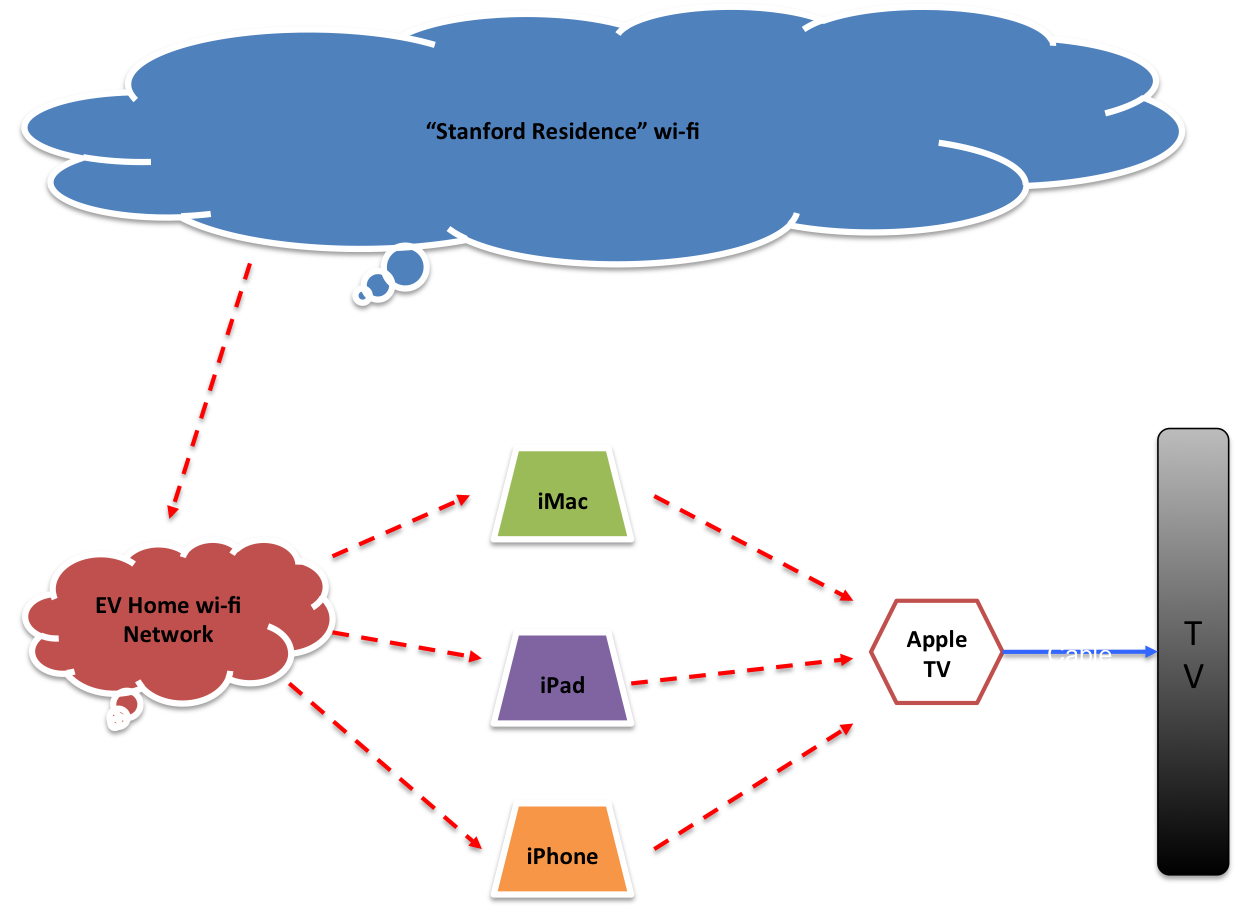
3. Once the router is configured, you can now set up a home wi-fi network from your router. Usually you go to an address like 192.168.1.X to do that. Google "default IP address for XXX" (substitute XXX for the brand/model of your router) to get that IP address for the admin page of the router. Set a password for your home wi-fi network. This set up is not the most common or intuitive one. Usually your router is connected to a wall-jacket by a network cable to some broadband/cable connection provided by the local carrier, then it creates a wi-fi network and all your devices are connected to the wi-fi network. In Stanford, you can also connect to "Stanford Residences" through a wall-jacket, but there is really no need to do that. So for the residents living in Escondido Village, your home network is sort of wireless-to-wireless, instead of cable-to-wireless. Most if not all the routers in the market should be able to support the wireless-to-wireless configuration.
4. If you use the idiosyncratic Time Capsule like me, you're in for a ride at this point. Time Capsule is unique and it is quite a challenge to set up its network and connect that to "Stanford Residencess", because Apple (being Apple) has very restrictive settings for Time Capsule that is very different from other "normal" routers in the market. Contact me if you run into problems with Time Capsule. I'm not at liberty to go into more details about Time Capsule openly.
5. Connect your every device including Apple TV to the newly created home wi-fi network. Getting online should be no problem now (well, it is never a problem even without the router).
- Connect your Apple TV to your TV with an HDMI cable.
7. Under the same home wi-fi network, Airplay will work now between your iOS device (iPad/iPhone/Macbook Air/iMac) and Apple TV, and Apple TV will project everything on your device to the TV screen. If you don't set up a home wi-fi network and only connect to "Stanford Residences", airplay WILL NOT work because Apple TV cannot see your iOS device on the massive "Stanford Residences" network.
8. By the same token, your Home-Sharing from the iPhoto/iTunes on your iMac will also work like a charm now, which is really cool. I can now flip through all my photo albums on the 47-inch TV and use its stereo system to play my numerous playlists from my iTunes.
9. Another reason why you should get a router and set up a home wi-fi network - privacy with Airplay and Home-sharing. If you only connect to Stanford Residences and are not careful about Airplay/Home-sharing, you might allow unintended parties to peek into your personal stuff.