Set Up Apache on Mac Sierra 10.12
Here's the how-to guide to set up Apache on Mac Sierra 10.12.6. It's more involving than just serving up a http server from a local directory, which can be done with python -m SimpleHTTPServer 8080 (for Python 2.7) or php -S <adddres>:<port> (for PHP 5.4).
Make a copy of the critical Apache configuration file first, before modifying it
sudo cp /etc/apache2/httpd.conf /etc/apache2/http.conf.bak
Uncomment several lines in the Apache configuration file http.conf
sudo vim /etc/apache2/httpd.conf
Enter into Edit Mode. To enable PHP, change
#LoadModule php5_module libexec/apache2/libphp5.so
into
LoadModule php5_module libexec/apache2/libphp5.so
Might as well enable Perl. Change
#LoadModule perl_module libexec/apache2/mod_perl.so
into
LoadModule perl_module libexec/apache2/mod_perl.so
To enable personal website, change
#LoadModule userdir_module libexec/apache2/mod_userdir.so
into
LoadModule userdir_module libexec/apache2/mod_userdir.so
and also
#Include /private/etc/apache2/extra/httpd-userdir.conf
into
Include /private/etc/apache2/extra/httpd-userdir.conf
Lastly, grant permission by changing
<Directory />
	AllowOverride none
	Require all none
</Directory>
to
<Directory />
	AllowOverride none
	Require all granted
</Directory>
Save the httpd.conf file and exit.
Open the file that was just enabled
sudo vim /etc/apache2/extra/httpd-userdir.conf
Uncomment Line 16 by changing
#Include /private/etc/apache2/users/*.conf
to
Include /private/etc/apache2/users/*.conf
Mac's Lion and later versions no longer create a personal web site by default. To create one manually,
mkdir ~/Sites
echo "<html><body><h1>My Awesome Site Works!</h1></body></html>" > ~/Sites/index.html.en
Then create a user configuration file for Apache, first figure out what is your username:
whoami
sudo vim /etc/apache2/users/<your short user name>.conf
Copy and paste the following content into the new file
<Directory "/Users/<your user name>/Sites/">
	AddLanguage en .en
	AddHandler perl-script .pl
	PerlHandler ModPerl::Registry
	Options Indexes MultiViews FollowSymLinks ExecCGI
	AllowOverride None
	Require host localhost
</Directory>
To check if the Apache configuration is valid,
apachectl configtest
If the command returns Syntax OK then Apache is good to go.
Turn on the Apache httpd service
sudo launchctl load -w /System/Library/LaunchDaemons/org.apache.httpd.plist
In browser, open this
It should say:
#It works!
Check if the user's Site directory is also open for business (xxx = your user name)
Create a PHP info file with
echo "<?php echo phpinfo(); ?>" > ~/Sites/info.php
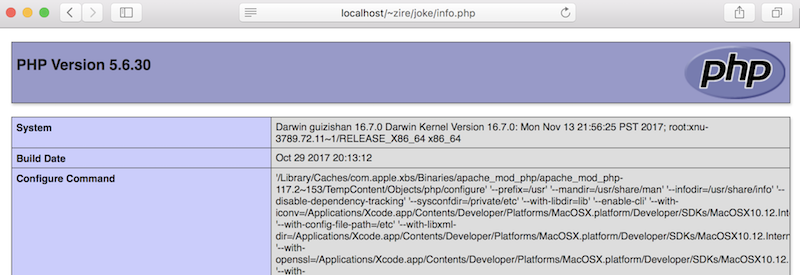
Check this page to verify that PHP is running
http://localhost/~xxx/info.php
Here's the result
Create a similar info file for Perl
echo "print \$ENV{MOD_PERL} . qq{\n};" > ~/Sites/info.pl
Check this page to verify that Perl is running
Here's the result

That's it! To restart Apache with additional changes to the configuration
sudo apachectl graceful or sudo apachectl restart