How to Set Up Stanford Email on OSX Mail
Thanks to Sten's help, I finally was able to set up my Stanford email on the Mail client on my Macbook Air. For other Sloans who might need similar help, here are the instructions:
Confession of a Stanford Sloan Fellow Series EP02
Thanks to Sten's help, I finally was able to set up my Stanford email on the Mail client on my Macbook Air. For other Sloans who might need similar help, here are the instructions:
Background: I used to set up my Gmail in a way such that all my other emails will be routed through Gmail (I have 10+ from all sorts of different projects/companies/organizations I'm involved in). Not only I can receive those emails through my Gmail account, but also I can send emails out in the name of my other email addresses (for example,
herbert@wuzuoren.org) through my Gmail. This is all pretty neat, until
recently Stanford IT made a slight change to its mail server setting that spoiled my perfect world of emailing. Basically, I won't be able to send email to restricted group mailing lists (for our Sloan Fellow class) hiding behind my Gmail, like I used to. For an aspiring social chair, spamming ability to the class on 24/7 basis is a must-have. So I have to change the way I route my Gmail. Instead of consolidating Stanford Email into my personal Gmail, I would have to route Stanford Email to go to my email client on Macbook Air, Mail (version 6.0) directly.
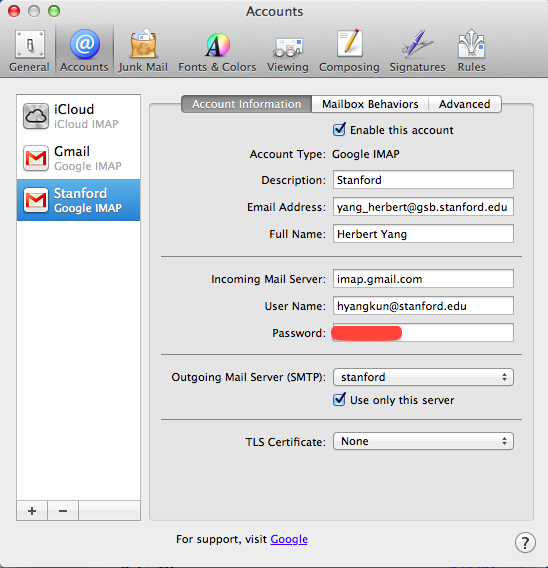
Screen 1
Screen 2
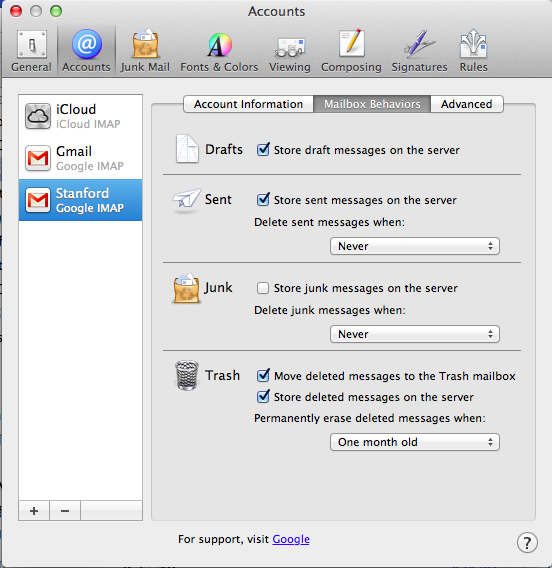
Screen 3
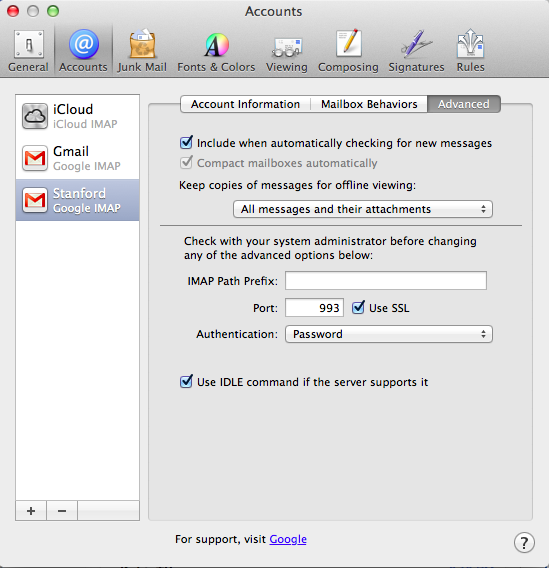
A few things to note:
-
Incoming Mail Server is the trick here, as it should be imap.gmail.com, not the XXX.pobox.stanford.edu from Stanford IT's website.
-
Use your gsb.stanford.edu email, not the stanford.edu one.
XXX@stanford.eduwill expire after your graduation, butXXX@gsb.stanford.eduis permanent. -
Turn off all the forwarding for your Stanford email to avoid duplicated mails. In your Stanford Webmail, turn off forwarding to other mail services like gmail; on your accounts.stanford.edu page, only send mails to stanford.edu address.
Voila!